
Perma.cc Service
University of Idaho Library is a Registrar Library for Perma.cc. Developed and maintained by the Harvard Library Innovation Lab at the Harvard Law School Library, Perma.cc is a web archive specifically designed for preserving sources cited in publications and research.
Unlike the Internet Archive or the University of Idaho Library’s Archive-It collections, Perma.cc does not crawl the open web. All pages stored in the archive are captured by individual users and provided with a short “permalink”. Rather than being represented in a timeline of captures, each permalink has an individual page that includes the archived page, a screenshot, and metadata. Additionally, Perma provides users an interface to organize and annotate links you have created.
The clear focus on supporting academic citation makes Perma.cc a good choice for preserving sources in scholarly writing.
Since the permalinks are relatively small (e.g. https://perma.cc/T8YP-BFC9), they are handy to add to citations and references.
As a Registrar Library, we can sponsor University of Idaho affiliated accounts, providing support and unlimited permalink creation.
Get Started
Establish a sponsored account:
- Create an account using your U of I email. Individual accounts start with only 10 free trial links.
- Contact Evan Williamson or Rebecca Hastings in the Library to consult about your use case. We will establish an “Organization” for you that will allow you to create unlimited permalinks.
- Create permalinks, cite, and ask us questions!
Create permalinks
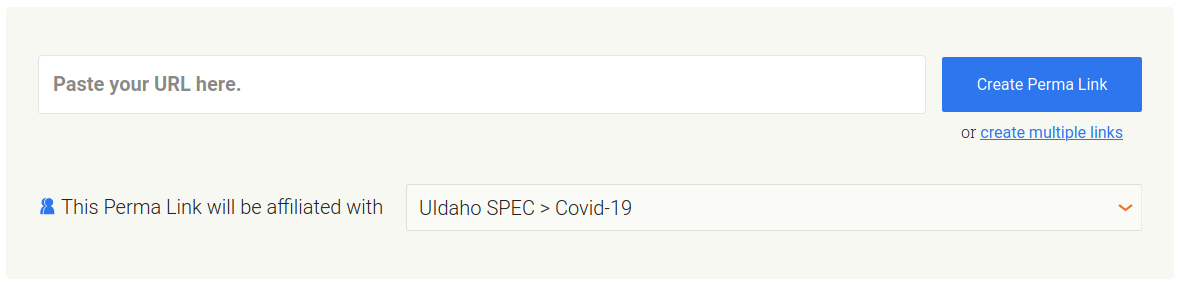
- Log into to your Perma.cc account.
- Paste a full URL into the form box.
- Select your “Organization” and any sub-folder where you want to save the link.
- Click “Create Perma Link”.
- The capture process will take awhile. When complete you will be redirected to the new permalink (if something goes wrong you may get an error message).
- Copy the permalink URL from the address bar in your browser.
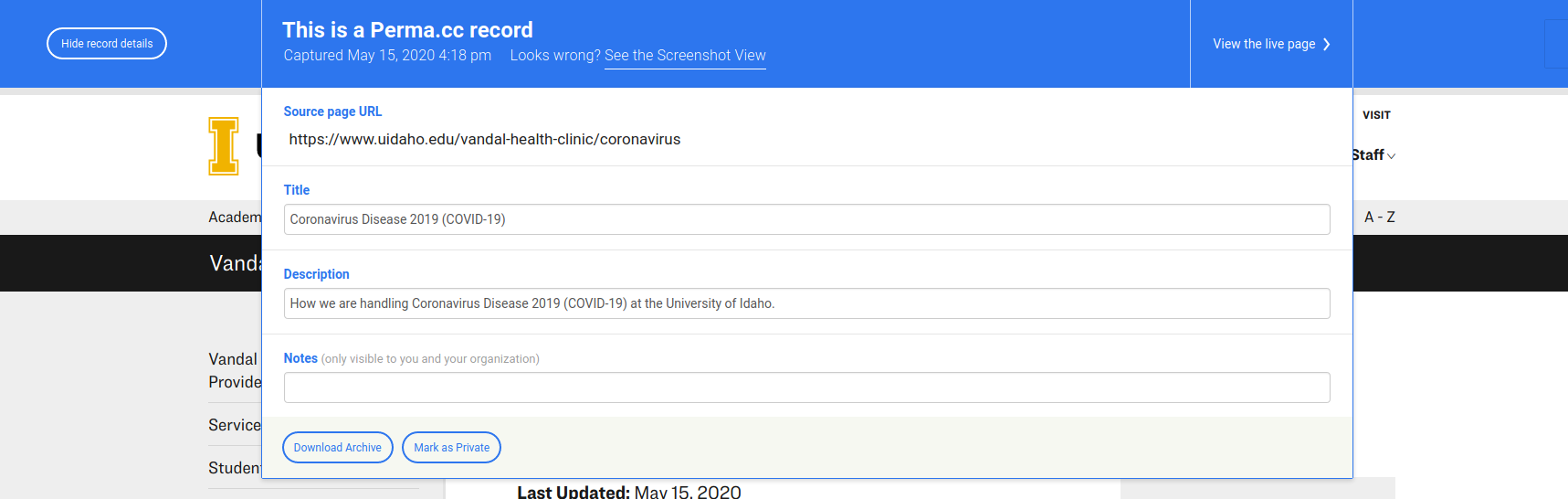
A blue bar at the top of the permalink page will provide information and options related to the archived page. You can:
- Switch to screenshot view.
- Edit metadata and annotate the link.
- Download the WARC archive file.
- Delete the capture during the first 24 hours (after which they are permanent).
You can copy the URL in the address bar to use in your citation. Keep in mind that you will sometimes encounter errors and some websites block archives, so it is important to check your captures. Delete unsuccessful captures.
If you encounter a page which has a valid screenshot, but archive page displays incorrectly, you can reference the screenshot by adding ?type=image to the end of the permalink (e.g. https://perma.cc/T8YP-BFC9?type=image).
Manage Links
When logged in, your Perma.cc home page provides powerful options to organize and manage permalinks you created.
Most of your links will be part of your sponsored “Organization”. Only links created associated with the org will be unlimited. It is helpful to create folders inside the org to help organize your permalinks.
The interface also enables you to search your permalinks and export the list as a spreadsheet.
If you have a list of several URLs to archive, you can click “create multiple links” below the “Create Perma Link” button. This will open a dialog where you can paste multiple links, one per line, and capture them as a batch process (this might take awhile). The Perma.cc browser extension or bookmarklet is also helpful if you regularly capture pages.
Perma.cc has good documentation available and a developer API.