Scarlett 16i16 - Audio Interface Quick Guide
When using the Mac mini in the WhisperRoom, ensure that the default audio input and output are set to the Scarlett 16i16. To check this:
- Open System Preferences → Sound.
- Confirm that both Input and Output are set to Scarlett 16i16.
This setting also needs to be verified within any audio editing or playback software (e.g., Reaper, FL Studio) to ensure proper recording and playback.
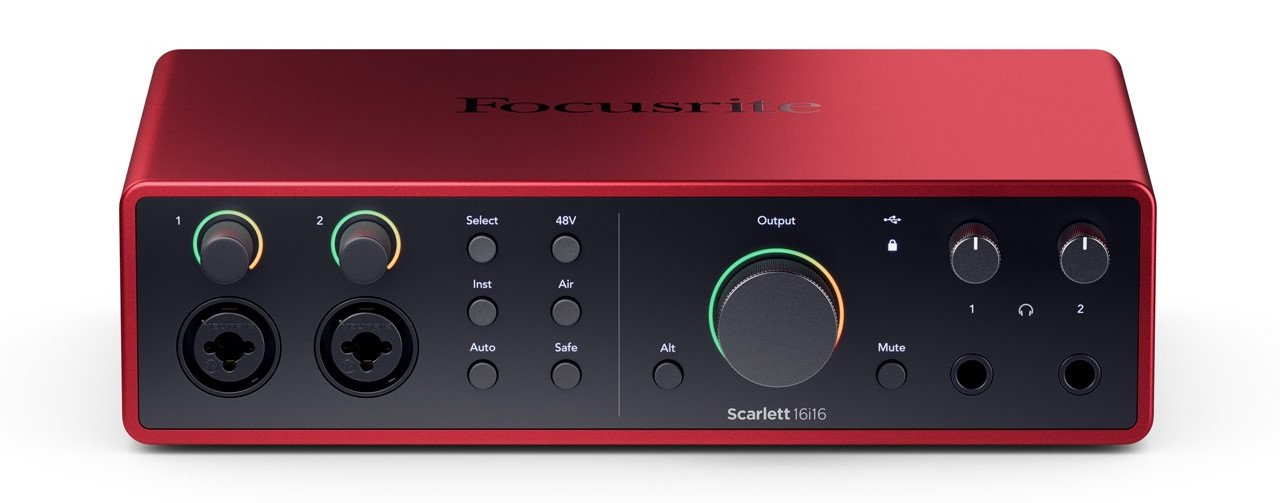
The quick guide below covers the basics of Scarlett 16i16 front panel. Please note that additional adjustments to the settings can be made in the Focusrite Control 2 software application.

Inputs and Gain
 Gain control - Controls recording level for Inputs 1 & 2.
- Inputs 1 & 2 - For plugging in microphones or instruments. The Shure SM58 and Rode NT1A are connected to Input 1 & 2.
Microphone Power and Sound Shaping
- Select - Many front panel controls on Scarlett 16i16 are shared across the preamp inputs. The Select button moves the preamp controls to different inputs.
- 48V (Phantom Power) - Needed for condenser microphones, including Rode NT1A.
- Inst - Turns Inputs 1 & 2 into high-impedance instrument inputs (e.g., guitar). Leave off unless plugging in an instrument directly.
- Air - Adds brightness and presence to the sound; enabled via Focusrite Control 2.
- Auto - Auto Gain allows you to send a signal into Scarlett 16i16 (e.g. singing or playing your instrument) for 10 seconds and let the Scarlett set a good level for your preamps.
- Safe - The Safe button applies Clip Safe, which automatically adjusts your preamp gain if you’re at risk of clipping.
Level Monitoring and Output Controls
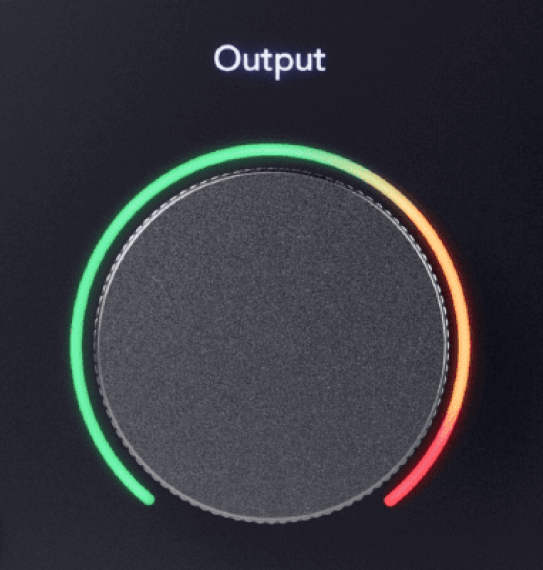 Main Speaker Output Control - Controls volume for the studio monitors.
 (USB Active LED) - Green light means connected to the computer.
 (Locked LED) - Shows the unit’s clock is synced properly.
- Alt - Switches output between main speakers and a secondary set (set in Focusrite Control).
- Mute - Silences studio monitors.
Headphones
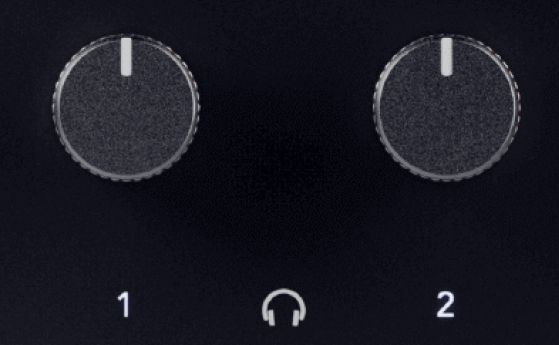 Headphone Volume 1 & 2 - Controls volume for each headphone output.
For more information, visit the Focusrite’s Scarlett 16i16 4th Gen User Guide.